Blender Measurement Fixed
:date: 2026-09-02 14:09 :tags:
Blender is an amazing piece of software and I love it but there are some things which just drive me crazy! Usually the deficiency is actually mine. Once I finally learn some esoteric trick it does turn out that Blender made sense all along and I was just ignorant. My biggest complaint, however, does not involve my clumsiness. I know this because over the last 10 years that I've been studying Blender, it has improved dramatically in this area — and it's still terrible!
The functionality I'm highlighting today is simple measurement. I'm not asking Blender to do the math; no, I know it has already done the math and I just want it to tell me what the answer is! If I put together an excruciatingly careful model I may have questions like, how big of a box would I need to contain this whole model? Will my canoe fit in through the doorway? If this bike seat is correctly modeled with my whole bike, how high off the ground is it? Stuff like that.
The cultural disconnect here is that while this is probably the most important function for a CAD system, for a 3d art platform it is much lower on the list of priorities. Blender artists would be inclined to just model a box to see how big one needs to be to fit a model. They would just make a quick doorway and see if the canoe looked like it fit. It's good to be able to do that when it confers advantages, but sometimes you just need to know how high the bike saddle is off the ground without modeling a square bar also that high for reference. It is embarrassing to both me and Blender how many times I've had to make such reference objects just to find out how big something is.
Blender actually has several ways to get distance information out of a model. All of them have problems.
For starters, you can turn on Mesh Edit Mode Overlays so that edges are numerically annotated with how long they are. That is dynamic and pretty hands off, but the setup is fussy and I find it only solves about 5% of real measurement questions. The precision is seemingly random. And look how crazy tiny these numbers are — no way to control it that I know.
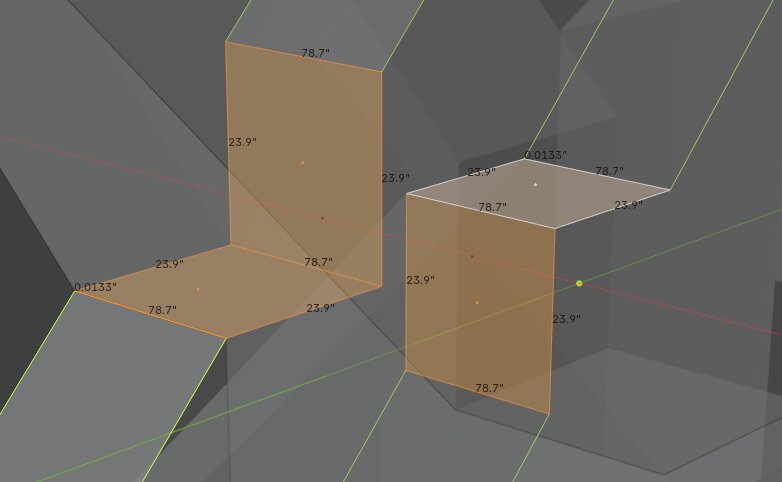
This edge marking can, in theory, help you find errors like the one where my boolean cutting operation left a 0.0133" edge. But that can be hard to spot — did you catch it? (There are two, for example, the far left numerical value.)
In modern Blender versions, there is the promising Measurement Tool. Its icon has two rulers in an L.
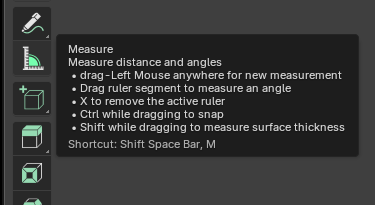
Here are things I do not like about it.
- Requires the T (tool) menu. As far as I know there are no key bindings for this making it instantly unsuitable for anyone competent.
- You must hold down the mouse button between the first and second measurement points. Besides not being how things like this are normally done in Blender, there's a more serious issue. Imagine you're trying to pick a point in a complex mess that you've zoomed in on and the other point is in a complex mess far away on your model and now off screen. How do you even handle that?
- I'm sure there is a strategy for how many digits of precision this tool produces, but the fact that I don't know what it is makes me crazy. This is especially rough when trying to measure a model to find out if your 2x4 is really 3.5000 inches or actually 3.5072 in the model. Good models do not have such inaccuracies!
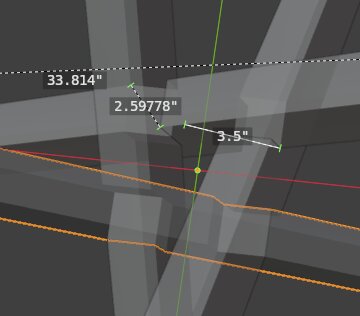
- It leaves the measurement behind as some kind of permanent artifact. Let me stress this: you can not simply check on the dimensions of something in the model without adding to the model! The times when I would want this kind of permanent record of a measurement, I would go with the MeasureIt addon which is yet another ponderous way one can get measurements. The advantage of that tool is that it makes somewhat decent blueprint style dimension lines, better than the Measure Tool's which are invisible on render. Here's an example of MeasureIt.

- The key bindings and operation of the Measurement Tool are idiosyncratic. When the snap is in effect is odd; when would not having a clear snap make any sense for a measurement that's intended to be better than just sizing it up visually?
- It's mostly impossible to decompose measurements between points only along a particular axis. For example if I measured from a point at the peak of a house roof to a point at the gutter, I know how far rain might travel, but I have no clue about how much higher the roof makes the structure. For that, I want those same points but I only want the distance in the up/down (Z) direction.
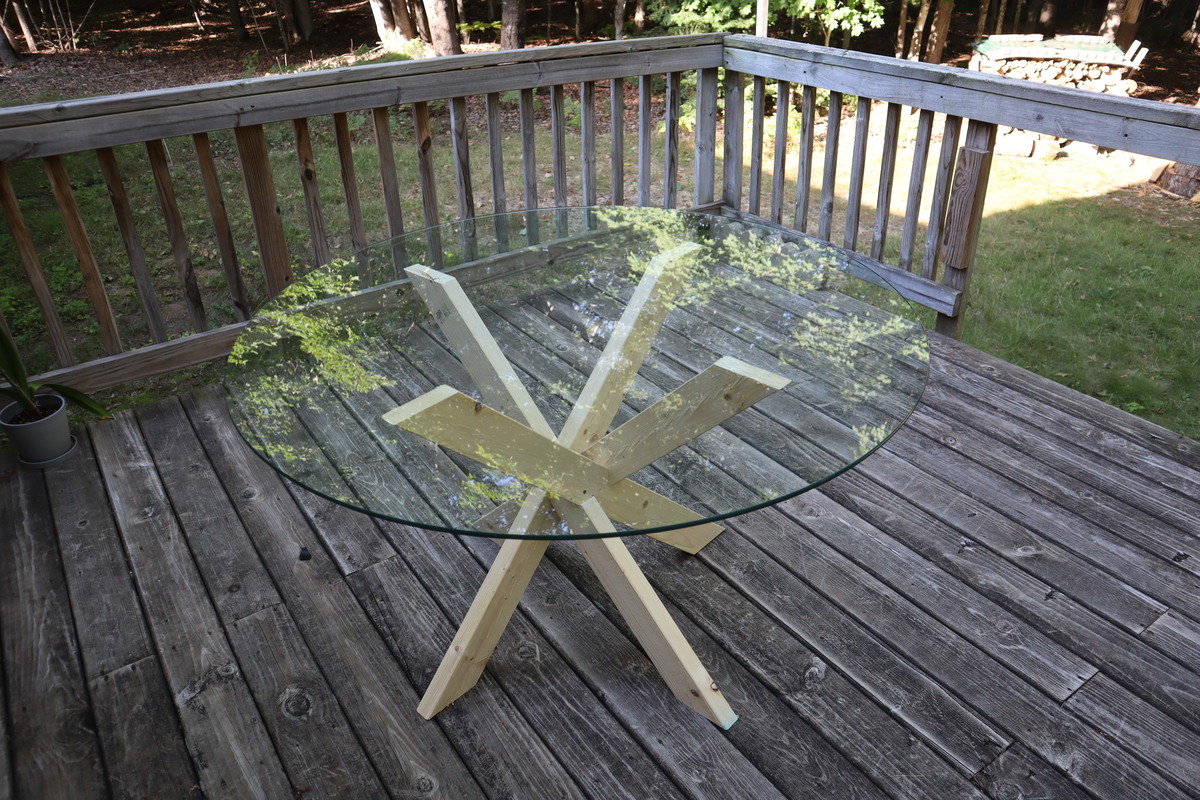
Yesterday I was working on one of my custom table designs (which I invented using 3d computer modeling in 1990!) and it is exactly the kind of project that requires the ability to easily do complex measurements. It was driving me crazy!
What is so maddening about it is there is another way to get distance. You can open up a Python console, put the 3d cursor on the first point, then the second point while typing these commands.
p1= C.scene.cursor_location.copy()
p2= C.scene.cursor_location.copy()
print(p2-p1)
That's it! Like I say, Blender has already done the math! I just need it to tell me about it. But this Python interface is not so fun. Can it be improved? Turns out, yes!
I had some astonishingly good results with Anthropic's Claude recently and so I made a very detailed careful prompt of exactly what I wanted and how it should work and presto! That's what I got. This was kind of a perfect mission for it since it has read all of the add-ons and my proposed add-on was so simple and basic that all of the challenge is just producing a sane basic add-on code template. If I had to do this without robot help I would have had to do what Claude did — read enough add-on source code until I could strip away everything that wasn't common to all of them and then add my ridiculously simple core logic, logic that I worked out long before there were robot helpers.
I'm calling my addon Xed Dist so that I can easily recognize it in the aforementioned crowd of measurement tools. Here's what its interface looks like.
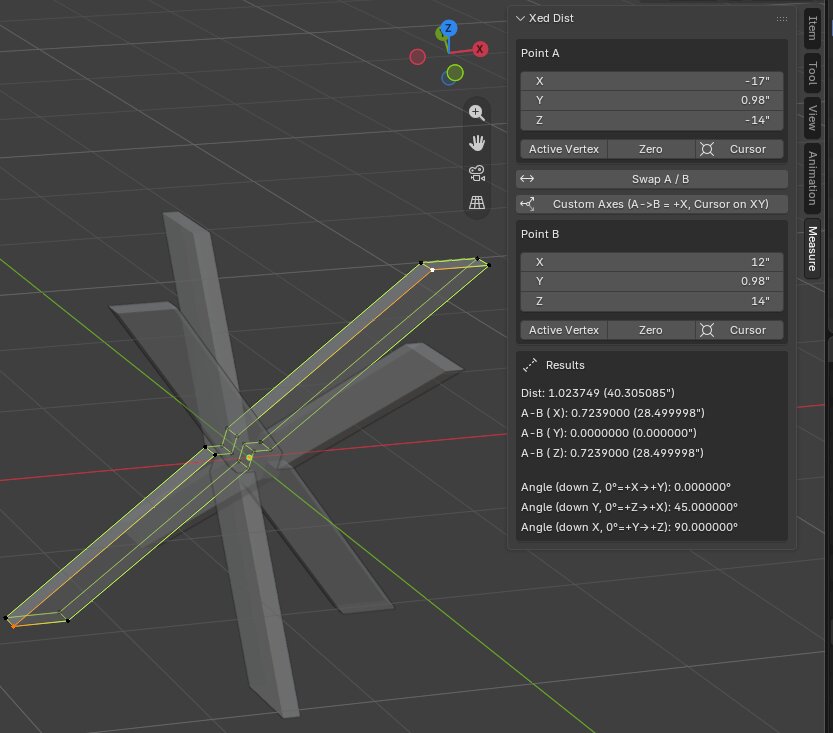
There are basically two identical input regions for the two endpoints of a measurement. You can type in the numbers yourself if you know some arbitrary reference point in your model that may not have any geometry. But the more common thing to do would be to fill these fields in by picking at features in your model. Unlike the stock Measure Tool, my system collects points in exactly the same way you specify them in the majority of Blender operations. In the image, for example, I am in vertex edit mode and I selected the bottom (orange) vertex and clicked the Active Vertex button for Point A. Then I held shift and clicked the top (white) vertex) and clicked the Active Vertex button for B. Done. That was it.
The results update whenever the points are changed. How tall is this table? The Z component of the A-B say its 28.5". How would I ever get this out of Blender's stock measuring tools? But I'm also seeing the full distance as well as verifying that the Y is 0 letting me know I didn't accidentally stray from my intended plane during modeling.
There are also angles shown. This is more complex but for simple cases like this one it is helpful. The 45deg is confirmed just as the X component matching the Z height suggests it should be.
The Zero button simply sets a point to the world origin, all zeros. The Cursor button is more useful. You can type Shift-S and 2 (standard Blender expert stuff) to put the 3d cursor on a particular vertex, or, better, the average of a collection of them (a good way to get a midpoint). It is also very helpful for non-model geometry questions too, like checking the exact distance between a light source and a camera or just how far above the camera the light source is.
In between the two Point input regions are two buttons. The Swap A/B does the simple thing it promises. The Custom Axes is more complicated but still not too bad because instead of relying on some internal Blender concepts it relies on your model and your understanding of it.
Let's say I wanted to know how long to cut each of those boards that make up the table. Basically I need to know the maximum length of any part of the object along the long axis. But since the long axis is up on an angle, decomposing the distance vector won't help. One thing I could do is grab this object, temporarily rotate it flat by 45deg, take my measurement, and then rotate it back. But the Custom Axes allows you to load A with a local axis origin and B with a point on the positive X of a local axis. Basically if I put in the two points shown above and click custom axis, the measurements will be given with respect to that axis. If you're good at 3d geometry, you'll know that two points is insufficient to really make a proper coordinate system. The 3d cursor can be used to be a third point on the new local X-Y plane.
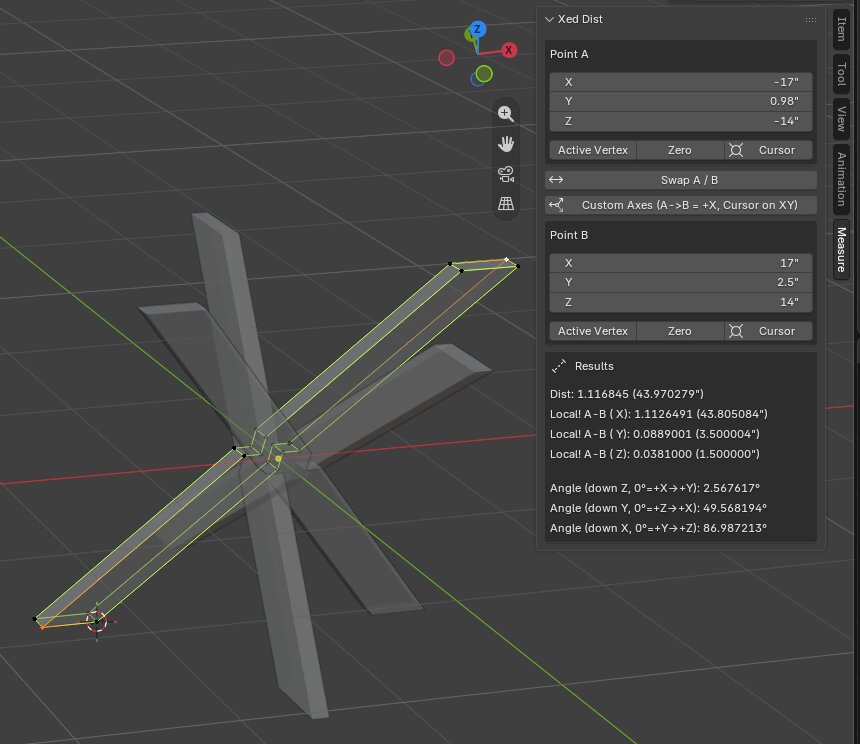
So if the A and B points were chosen as shown in the previous image and the 3d cursor set as shown, after using the Custom Axes button, when I set A and B to the points shown now, the measurements say Local! and show us that this is indeed a 2x4 (3.5in by 1.5in) because even on this angle, in the local system, the components decompose to the board's orthogonal sense. We can also see that the overall local X is about 43.8 which is what we'd need to cut from a 2x4 to get a long enough piece.
When specifying the third plane point for this feature, it can be helpful to Shift-RMB the 3d cursor onto any surface. Also when you're done with the Custom Axes and want to return to world axes, just hit the Zero button on both Point A and B and then hit the Custom Axes button again.
A subtle thing you may have noticed if you are a careful modeler who
keeps an eye on numerical details is that there is something fishy in
the Y value input box of Point A. Why is it 0.98"? It is a typical
capricious erroneous Blender rounding problem. We can see in the
Results section that the local Z (which is now aligned with world Y)
is correctly the width of a 2x4 at 1.5". Shouldn't the 2.5" shown in
Point B's Y input box minus this 1.5 be exactly 1? It turns out that
this particular design has all the table legs shifted in their local Z
(the world Y for this one) by 0.025" so that everything lines up
correctly. The Y on Point A is actually 0.975, not 0.98 as shown. Much
worse, the Y on Point B is not 2.5 as shown but rather 2.475"! This
interface just uses the normal Blender input boxes which commonly show
a totally different value than you will see if you actually click on
it to make an edit. This is why you can't even trust glancing up at
the Item tab's Vertex display and competently just doing the math
in your head! This is yet another reason that this add-on with its
stable full precision results section is such a critical improvement.
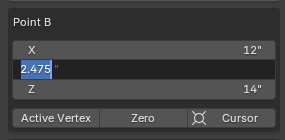
This is also why I've included a generous amount of displayed digits in the results section. You can set this in the code to be whatever you want, but I personally want a way to know everything that Blender knows where practical. There are errors that arise due to the way floating point numbers are encoded and some imperfections come with the territory, but seeing all the decimals can really help spot when something is out of whack because you made a tiny invisible slip up.
One of the reasons that I have input boxes at all is that besides
being a reasonable way to show the location of the selected points,
it is also a familiar interface with a lot of excellent functionality.
Let's say you're working on a house frame model and you want to know
how far it is from the window opening to the center of the room. The
room you can get by selecting its floor rectangle in face mode, putting the
3d cursor on it (Shift-S + 2) and clicking the Cursor button. But
let's say you haven't framed the window yet. You know the window
opening will be one stud from the last you've placed plus a supporting
king stud. You can select the farthest vertex of the last stud and
then go to the input box for that wall's axis and edit that value by
appending + 16 + 1.5. This will put your measurement point somewhere
you know is important but where nothing actually exists yet. Other
useful things to add might be / 25.4 to put a mm size into your
non-metric model. It's basically a handy calculator.
As you can see with my requirement to deal with 2x4's I have to suffer gringo units and having good feedback that simply provides Blender native meters and the units I often need to use is helpful. I think even for non-US people it could be nice to note that an odd measurement like 63.5mm is actually 2.5 Freedom Inches.
I don't know if I'll ever bother making a project page out of this. Not much of it is my code anyway. It is so ridiculously simple you can just tell your robot friend to make one for you. Heck, in the future, you should be able to give the link of this post to your robot friend and tell it what custom features you'd like. But for my archiving purposes, I'm going to dump the whole source code here for my future self and anyone who might need something like this.
bl_info = {
    "name": "Xed Dist",
    "author": "Chris X Edwards and robot friend Claude",
    "version": (1, 0, 0),
    "blender": (5, 2, 0),
    "location": "View3D > Sidebar (N-panel) > Xed Dist",
    "description": "Replaces the built-in Measure tool with typed-in vertex "
                   "coordinate boxes, live distance/axis-delta/angle output, buttons to:"
                   "swap A/B and to load point from: 3d cursor, origin, and active vertex.",
                   "Also load a custom axes by setting A to X=0, B to X+ value, and the",
                   "3d Cursor somewhere on the XY plane."
    "category": "3D View",
}

import bpy
import bmesh
import math
from mathutils import Vector
from bpy.props import FloatVectorProperty, PointerProperty, EnumProperty
from bpy.types import PropertyGroup, Operator, Panel

# == Helpers ==
def get_active_vertex_world_co(context):
    """Return world-space coordinates of the active vertex in edit mode, or None."""
    obj = context.edit_object
    if obj is None or obj.type != 'MESH':
        return None
    bm = bmesh.from_edit_mesh(obj.data)
    bm.verts.ensure_lookup_table()
    active_vert = None
    # Prefer the true "active" element from the selection history.
    if bm.select_history:
        elem = bm.select_history[-1]
        if isinstance(elem, bmesh.types.BMVert):
            active_vert = elem
        elif hasattr(elem, "verts") and elem.verts:
            # Active edge/face selected: fall back to its last vertex.
            active_vert = elem.verts[-1]
    if active_vert is None:
        # Fall back to the last selected vertex found.
        selected = [v for v in bm.verts if v.select]
        if selected:
            active_vert = selected[-1]
    if active_vert is None:
        return None
    return obj.matrix_world @ active_vert.co

def _wrapped_degrees(angle_rad):
    deg = math.degrees(angle_rad)
    if deg < 0:
        deg += 360.0
    return deg

# == Property Group ==
class MEASURETOOL_Properties(PropertyGroup):
    point_a: FloatVectorProperty(
        name="Point A",
        description="First measurement point. Accepts normal Blender typed "
                    "math in each field (e.g. click in, type '-1.5', Enter)",
        subtype='XYZ',
        unit='LENGTH',
        size=3,
    )
    point_b: FloatVectorProperty(
        name="Point B",
        description="Second measurement point. Accepts normal Blender typed "
                    "math in each field (e.g. click in, type '-1.5', Enter)",
        subtype='XYZ',
        unit='LENGTH',
        size=3,
    )
    local_x_axis: FloatVectorProperty(size=3, subtype='XYZ', default=(1.0, 0.0, 0.0))
    local_y_axis: FloatVectorProperty(size=3, subtype='XYZ', default=(0.0, 1.0, 0.0))
    local_z_axis: FloatVectorProperty(size=3, subtype='XYZ', default=(0.0, 0.0, 1.0))
    use_local_frame: bpy.props.BoolProperty(default=False)

# == Operators ==
class MEASURETOOL_OT_assign_active(Operator):
    bl_idname = "measuretool.assign_active"
    bl_label = "Assign Active Vertex"
    bl_description = "Copy the active vertex's world-space position into this point"
    bl_options = {'REGISTER', 'UNDO'}
    target: EnumProperty(items=[('A', "A", ""), ('B', "B", "")], default='A')
    @classmethod
    def poll(cls, context):
        return context.mode == 'EDIT_MESH' and context.edit_object is not None
    def execute(self, context):
        co = get_active_vertex_world_co(context)
        if co is None:
            self.report({'WARNING'}, "No active vertex found")
            return {'CANCELLED'}
        props = context.scene.measuretool_props
        if self.target == 'A':
            props.point_a = co
        else:
            props.point_b = co
        return {'FINISHED'}

class MEASURETOOL_OT_zero(Operator):
    bl_idname = "measuretool.zero"
    bl_label = "Zero to Origin"
    bl_description = "Set this point to the world origin (0, 0, 0)"
    bl_options = {'REGISTER', 'UNDO'}
    target: EnumProperty(items=[('A', "A", ""), ('B', "B", "")], default='A')
    def execute(self, context):
        props = context.scene.measuretool_props
        if self.target == 'A':
            props.point_a = (0.0, 0.0, 0.0)
        else:
            props.point_b = (0.0, 0.0, 0.0)
        return {'FINISHED'}

class MEASURETOOL_OT_swap(Operator):
    bl_idname = "measuretool.swap"
    bl_label = "Swap A / B"
    bl_description = "Swap the values of Point A and Point B"
    bl_options = {'REGISTER', 'UNDO'}
    def execute(self, context):
        props = context.scene.measuretool_props
        a = tuple(props.point_a)
        b = tuple(props.point_b)
        props.point_a = b
        props.point_b = a
        return {'FINISHED'}

class MEASURETOOL_OT_cursor_to_point(Operator):
    bl_idname = "measuretool.cursor_to_point"
    bl_label = "3D Cursor to Point"
    bl_description = "Copy the 3D cursor's location into this point"
    bl_options = {'REGISTER', 'UNDO'}
    target: EnumProperty(items=[('A', "A", ""), ('B', "B", "")], default='A')
    def execute(self, context):
        props = context.scene.measuretool_props
        cursor_co = context.scene.cursor.location
        if self.target == 'A':
            props.point_a = cursor_co
        else:
            props.point_b = cursor_co
        return {'FINISHED'}

class MEASURETOOL_OT_custom_axes(Operator):
    bl_idname = "measuretool.custom_axes"
    bl_label = "Custom Axes (A->B = +X, Cursor on XY)"
    bl_description = ("Build a local frame where A->B is +X and the 3D cursor "
                       "lies in the XY plane. Delta values then read in this "
                       "frame instead of world space. Zero A, zero B, and "
                       "click again to reset to world axes.")
    bl_options = {'REGISTER', 'UNDO'}
    EPS = 1e-8
    def execute(self, context):
        props = context.scene.measuretool_props
        a = Vector(props.point_a)
        b = Vector(props.point_b)
        cursor = context.scene.cursor.location
        ab = b - a
        if ab.length < self.EPS:
            props.use_local_frame = False
            self.report({'INFO'}, "Reset to world axes")
            return {'FINISHED'}
        local_x = ab.normalized()
        ac = cursor - a
        proj = ac - ac.dot(local_x) * local_x
        if proj.length < self.EPS:
            self.report({'ERROR'}, "3D cursor is colinear with A-B; can't define a plane")
            return {'CANCELLED'}
        local_y = proj.normalized()
        local_z = local_x.cross(local_y)
        props.local_x_axis = local_x
        props.local_y_axis = local_y
        props.local_z_axis = local_z
        props.use_local_frame = True
        return {'FINISHED'}

# == Panel ==
class MEASURETOOL_PT_panel(Panel):
    bl_label = "Xed Dist"
    bl_idname = "MEASURETOOL_PT_panel"
    bl_space_type = 'VIEW_3D'
    bl_region_type = 'UI'
    bl_category = "Measure"

    def draw(self, context):
        layout = self.layout
        props = context.scene.measuretool_props
        # === Point A ===
        box = layout.box()
        box.label(text="Point A")
        box.column().prop(props, "point_a", text="")
        row = box.row(align=True)
        row.operator("measuretool.assign_active", text="Active Vertex").target = 'A'
        row.operator("measuretool.zero", text="Zero").target = 'A'
        row.operator("measuretool.cursor_to_point", text="Cursor", icon='CURSOR').target = 'A'
        layout.operator("measuretool.swap", icon='ARROW_LEFTRIGHT')
        layout.operator("measuretool.custom_axes", icon='ORIENTATION_LOCAL')
        # === Point B ===
        box = layout.box()
        box.label(text="Point B")
        box.column().prop(props, "point_b", text="")
        row = box.row(align=True)
        row.operator("measuretool.assign_active", text="Active Vertex").target = 'B'
        row.operator("measuretool.zero", text="Zero").target = 'B'
        row.operator("measuretool.cursor_to_point", text="Cursor", icon='CURSOR').target = 'B'
        # === Results ===
        a = Vector(props.point_a)
        b = Vector(props.point_b)
        d = b - a
        distance = d.length
        dx, dy, dz = abs(d.x), abs(d.y), abs(d.z)
        # Angles: for the plane perpendicular to a given axis, measured CCW
        # starting at the first of the two remaining axes in the cyclic
        # order X -> Y -> Z -> X, so a positive angle sweeps toward the
        # second axis (right-hand rule about the axis you're "looking
        # down"). E.g. looking down Z: 0deg = +X, 90deg = +Y (matches spec).
        angle_z = _wrapped_degrees(math.atan2(d.y, d.x))  # look down Z, 0=+X, 90=+Y
        angle_y = _wrapped_degrees(math.atan2(d.x, d.z))  # look down Y, 0=+Z, 90=+X
        angle_x = _wrapped_degrees(math.atan2(d.z, d.y))  # look down X, 0=+Y, 90=+Z
        box = layout.box()
        box.label(text="Results", icon='DRIVER_DISTANCE')
        col = box.column(align=True)
        col.label(text=f"Dist: {distance:.6f} ({distance/0.0254:.6f}\")")
        if props.use_local_frame:
            lx = Vector(props.local_x_axis)
            ly = Vector(props.local_y_axis)
            lz = Vector(props.local_z_axis)
            dx, dy, dz = abs(d.dot(lx)), abs(d.dot(ly)), abs(d.dot(lz))
            axis_label = "Local! A-B ("
        else:
            dx, dy, dz = abs(d.x), abs(d.y), abs(d.z)
            axis_label = "A-B ("
        col.label(text=f"{axis_label} X): {dx:.7f} ({dx/0.0254:.6F}\")")
        col.label(text=f"{axis_label} Y): {dy:.7f} ({dy/0.0254:.6F}\")")
        col.label(text=f"{axis_label} Z): {dz:.7f} ({dz/0.0254:.6F}\")")
        col = box.column(align=True)
        col.separator()
        col.label(text=f"Angle (down Z, 0°=+X→+Y): {angle_z:.6f}°")
        col.label(text=f"Angle (down Y, 0°=+Z→+X): {angle_y:.6f}°")
        col.label(text=f"Angle (down X, 0°=+Y→+Z): {angle_x:.6f}°")

# == Registration ==
classes = (
    MEASURETOOL_Properties,
    MEASURETOOL_OT_assign_active,
    MEASURETOOL_OT_zero,
    MEASURETOOL_OT_swap,
    MEASURETOOL_PT_panel,
    MEASURETOOL_OT_cursor_to_point,
    MEASURETOOL_OT_custom_axes,
)

def register():
    for cls in classes:
        bpy.utils.register_class(cls)
    bpy.types.Scene.measuretool_props = PointerProperty(type=MEASURETOOL_Properties)

def unregister():
    del bpy.types.Scene.measuretool_props
    for cls in reversed(classes):
        bpy.utils.unregister_class(cls)

if __name__ == "__main__":
    register()
To get it working, save this code as something like xeddist.py. Then
in Blender, open Preferences (Ctrl-,) then go to the Add-ons
section. They've made some major changes here recently (after v5) —
you have to click on the little V symbol in the far upper right
corner and choose Install from Disk... from the pull down. Then find
the Python file and that should be it - it should show up in the
interface as
described.